
How to Verify your Meta Business Account
After you've set up your phone number with the WhatsApp API, you can start using our tool to send and receive messages right away.
However, to get your display name approved and increase your daily messaging limit from 250 messages per 24 hours to 2,000 and above, you'll need to get your Meta Business account verified.
Requirements
To verify your business with WhatsApp, you need the following two documents:
- Business legal name document – This can be your GST certificate, EIN documentation, certificate of incorporation/formation, or business license. View the list of documents accepted by Meta.
- Business address & phone number document – This can include your MSME Udyog Aadhaar, a utility bill (water, electricity, etc.), a bank statement, or your business license.
Steps to Verify Your Meta Business Account
Follow the instructions below to verify your business:
- Click here to go to the Security Center page in the Meta Business Settings. If it asks you to select a business, select the one you used during the API setup.
- From the Verification section, click on Start verification. If it shows some other button, click on that.
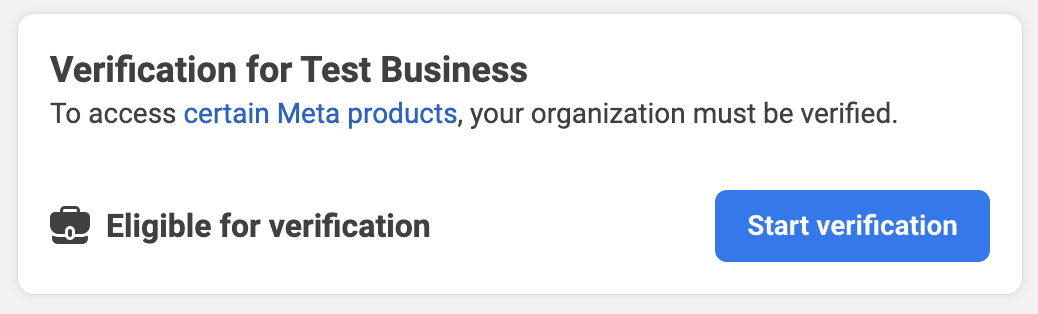
- You’ll now see a popup with title Verify your organization. Click on Get Started at the bottom.
- On the next screen, Select a country where is your organization located and click on Next.
- Now on the next screen Add organization details as shown in your legal documents.
- Organisation name and address - Enter these details exactly as they appear in your legal documents.
- Phone number - Enter the business phone number that appears on at least one of your legal documents or utility bills. This number can be different from the one you set up with the API. Make sure you're able to receive an OTP or phone call on this number for verification.
- Website - If your brand name and legal business name are the same, enter your business website URL. If your brand name is different from your legal business name, enter your brand’s website URL. The brand website must display your legal business name in the footer.

- Click on the Next button. This will take you to the Select a contact method page. Once there, select the Text message (SMS) option (as it's the fastest) and then click on Next.
- On the next screen, if your business is already in Meta's database, it will appear for selection. Your can select it and proceed. If your business is not found, Meta will ask you to Add supporting documents to verify your business name and address. In Verify legal organisation name, upload a document with your legal name. If you're an Indian business, upload your GST certificate here. If it asks you to Verify phone number, upload a legal document with your business number. This business number is the same that you entered in step 5 earlier. After this click on Next.
- You’ll now see popup to confirm/verify the contact method you selected in step 6. Go through the verification process and enter the required details.
- Once this is done, you’ll see the following confirmation screen:
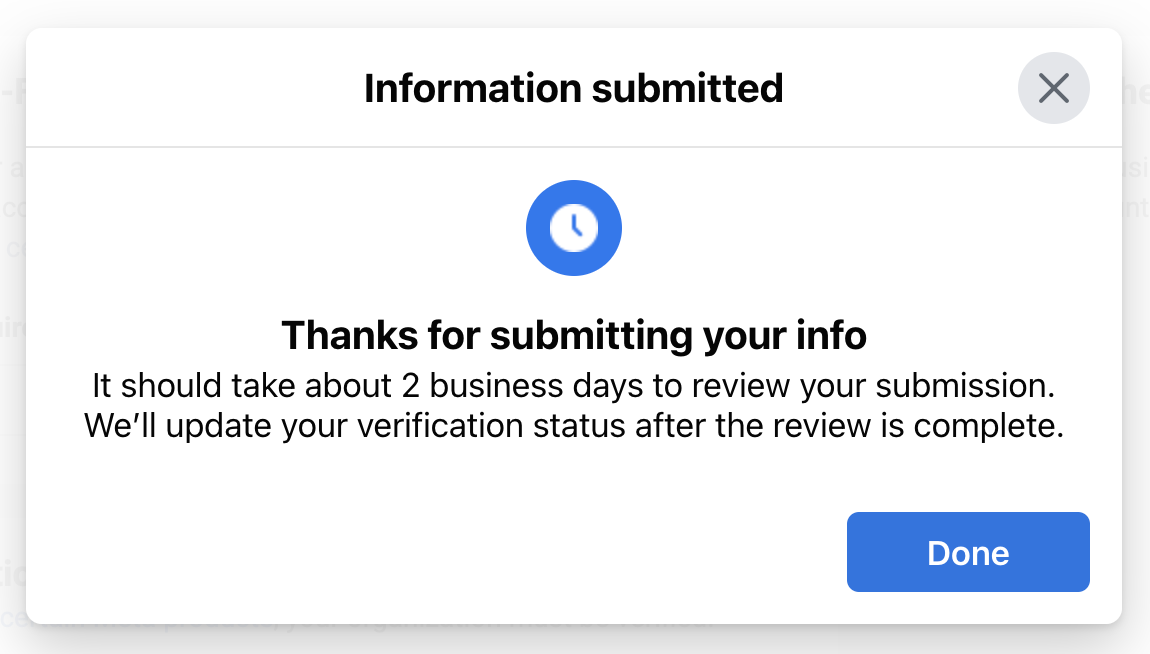
It usually takes less than 1 working day for Meta to review your business details. They might request additional details about your business, so please keep an eye in your email Inbox or the notifications section in the Meta portal for their response.
Next Step: Display Name Approval
Once your business verification is complete, the next step is get your Display Name approved so that WhatsApp can increase your daily messaging limit to 2,000 messages per day.
Updated on: 18/12/2025
Thank you!